
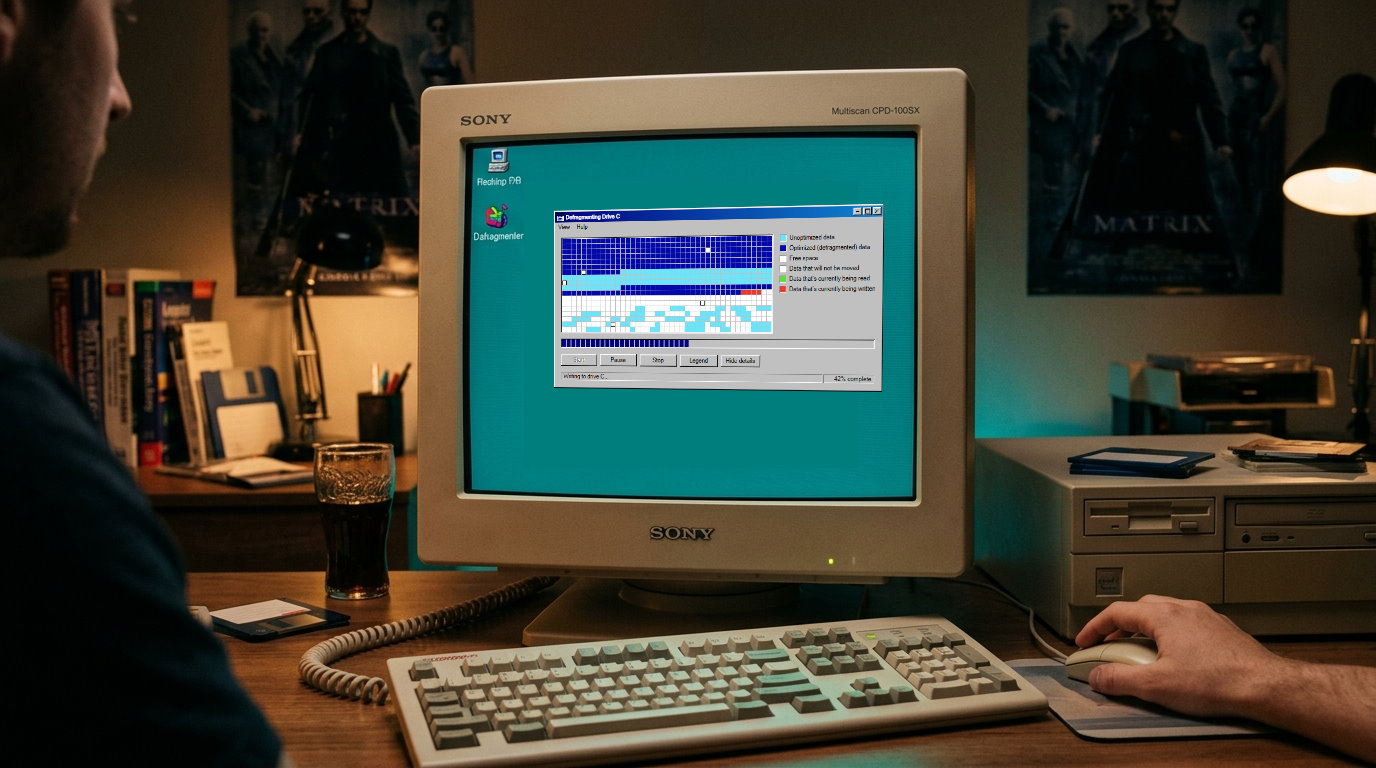
If you grew up using a personal computer in the late 1990s, you remember the sound.
It was the rhythmic, metallic crunch-crunch-thwip of a 4.3 GB Quantum Fireball hard drive mounted inside a beige steel tower. It was the faint phosphor warmth radiating off a 15-inch CRT monitor at 1:00 AM, illuminating a darkened bedroom with a saturated #008080 teal glow.
And on that screen was an application that captivated an entire generation: The Windows 98 Disk Defragmenter (defrag.exe).
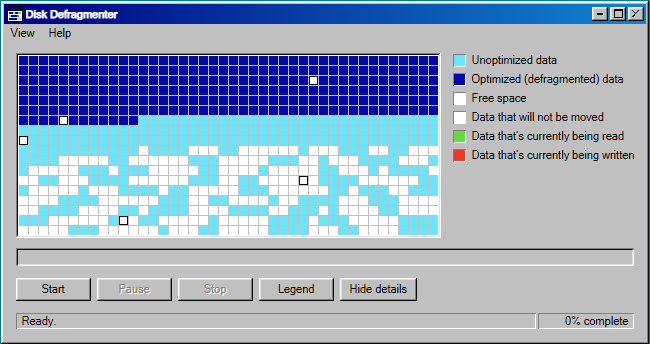
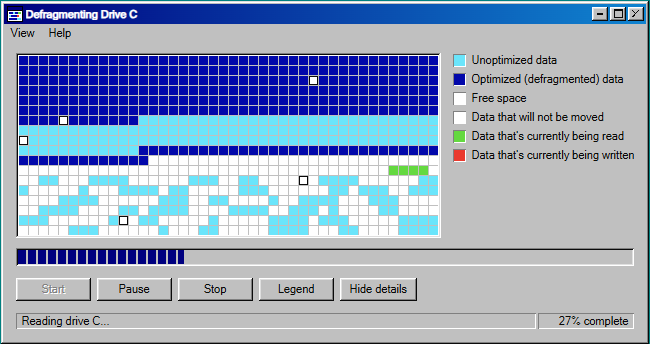
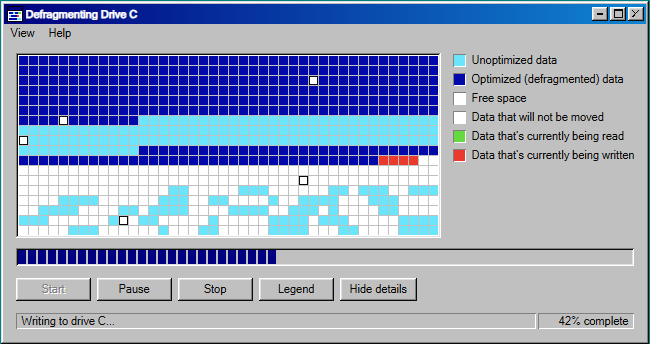
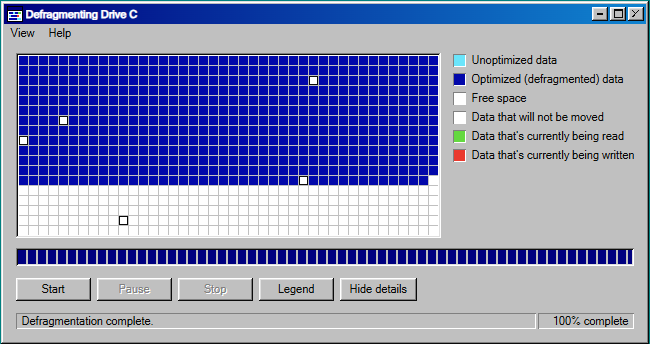
There were no algorithmic feeds, no smartphone notifications, and dial-up internet cost real money by the minute. So we sat there, chin rested on palms, mesmerized by a grid of colored squares slowly consolidating toward the front of the drive:
- Unoptimized light-blue clusters would suddenly flash radioactive green as they were read into memory.
- The disk head would seek across the platter, and destination blocks at the front would strobe alert red as data was written.
- With a quiet mechanical sigh, those cells settled into a soothing, solid navy blue.
1. Decoding the Sacred 6-Color Palette
Before writing any logic, the visual language had to be exact. The original utility didn’t use random primaries; it used an intentional palette designed for 8-bit and 16-bit CRT monitors.
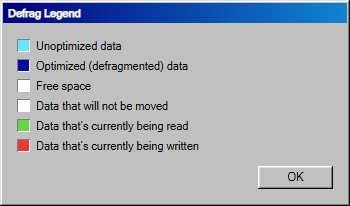
| State | Color | Hex Code | Meaning & Platter Behavior |
|---|---|---|---|
| Free Space | White | #ffffff | Available cluster space on the drive |
| Unoptimized Data | Cyan | #6ae5fb | Fragmented movable file cluster (Sky Blue) |
| Optimized Data | Navy | #0208aa | Contiguous defragmented cluster (Deep Navy) |
| Unmovable Data | Inset | #ffffff (Inset) | Locked swap files (win386.swp), system files, bad sectors |
| Reading Run | Green | #64d940 | Cluster currently being read from disk (Bright Green) |
| Writing Run | Red | #ea3a2e | Cluster currently being written to new position (Vivid Red) |
The legend dialog listed a mysterious sixth state: “Data that will not be moved”. These were the locked page files (win386.swp), system files, or bad sectors that marked out boundaries the defragmenter was forced to work around.
2. Why Naive Defrag Looked “Fake” (The Chunk Secret)
When you first try to simulate defragmentation, the obvious approach is to find the first empty space, find the last used cluster, and move it one single cell at a time.
If you ever watched the real Windows 98 utility, that is not how it worked. Real disk controllers read and write contiguous sectors in batches.
By grouping adjacent cluster moves into contiguous runs, entire 3-block and 4-block sequences flash green at the tail, vanish into free space, and strobe red at the head—recreating the authentic mechanical cadence of a real drive head seeking across platters.
3. Period-Accurate 3D Chrome: Bevels & Progress Bricks
In Windows 98, every button and status bar was an illusion rendered using dual 1px and 2px border bevels simulating an overhead light source:
.window {
background: #c0c0c0;
box-shadow:
inset -1px -1px #0a0a0a,
inset 1px 1px #dfdfdf,
inset -2px -2px #808080,
inset 2px 2px #ffffff;
}
The Segmented Progress Bar
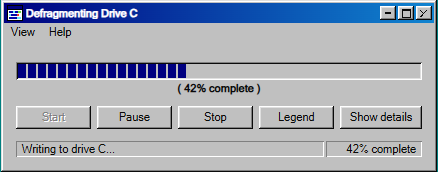
Remember how progress bars back then weren’t smooth gradients, but discrete little vertical blue rectangular bricks?
4. The Retro Easter Egg: “Under Construction” Mode
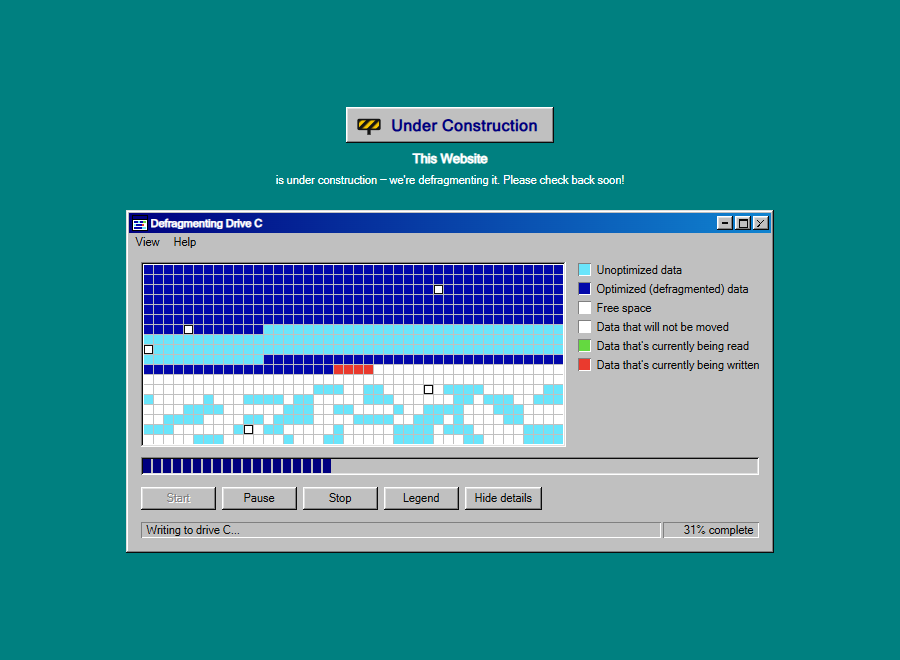
While building this simulator, we realized it had a wonderfully nostalgic second life. Remember the animated GIF construction workers with yellow tape from the GeoCities era?
With a single URL parameter, the simulator turns into an interactive, animated “Under Construction” page for modern websites:
5. Try It Live & Play With Presets
You can run and customize the simulator right now without installing anything:
⚡ Hyper-Speed Pass ↗
Watch the drive defrag at 8x turbo speed.
🖥️ Giant Wide Drive ↗
High-density 1,440 cluster platter layout.
🚧 Heavy Obstacles ↗
Drive packed with 20 unmovable sectors.
💾 Drive D: Pass ↗
Defragment your secondary drive partition.
6. Frequently Asked Questions
Why did Windows 98 defrag restart constantly back in the day?
In Windows 98, defrag.exe monitored disk write activity in real time. If any background program (or the OS writing to virtual memory in win386.swp) touched the file allocation table while defragmentation was underway, the entire process restarted from 0% to avoid filesystem corruption.
Should you defragment modern SSDs?
No. Solid-state drives and NVMe storage have no spinning platters or mechanical seek latency; data is accessed from flash memory blocks in nanoseconds. Running defragmentation on an SSD causes unnecessary flash wear without performance benefits. Modern systems use TRIM instead.
Can I embed this into my own website or portfolio?
Yes! The simulator is open source under the MIT license. You can drop index.html, css/, and js/ into any static host (GitHub Pages, Netlify, Vercel) or iframe it with URL parameters.
Epilogue: What We Lost When Things Got Fast
Modern NVMe solid-state drives don’t need defragmentation. Today, files are scattered across billions of silicon gates in nanoseconds, invisible and silent.
Software today is faster, smoother, and vastly more powerful. But there was something deeply comforting about the old world.
You could see the entropy of your operating system. You could watch chaos turn into order, block by block, cluster by cluster, until the drive was a clean, contiguous wall of navy blue.
Sometimes, in an industry obsessed with milliseconds, it’s worth taking two minutes to just sit back, relax, and watch the blocks march.
Relive the Nostalgia in Your Browser
No build step or dependencies required. Run the simulator live or explore the open-source code on GitHub.